Convert hanger photos online, what the AI keeps and what it guesses
By Snaproom · October 18, 2026 · 8 min read
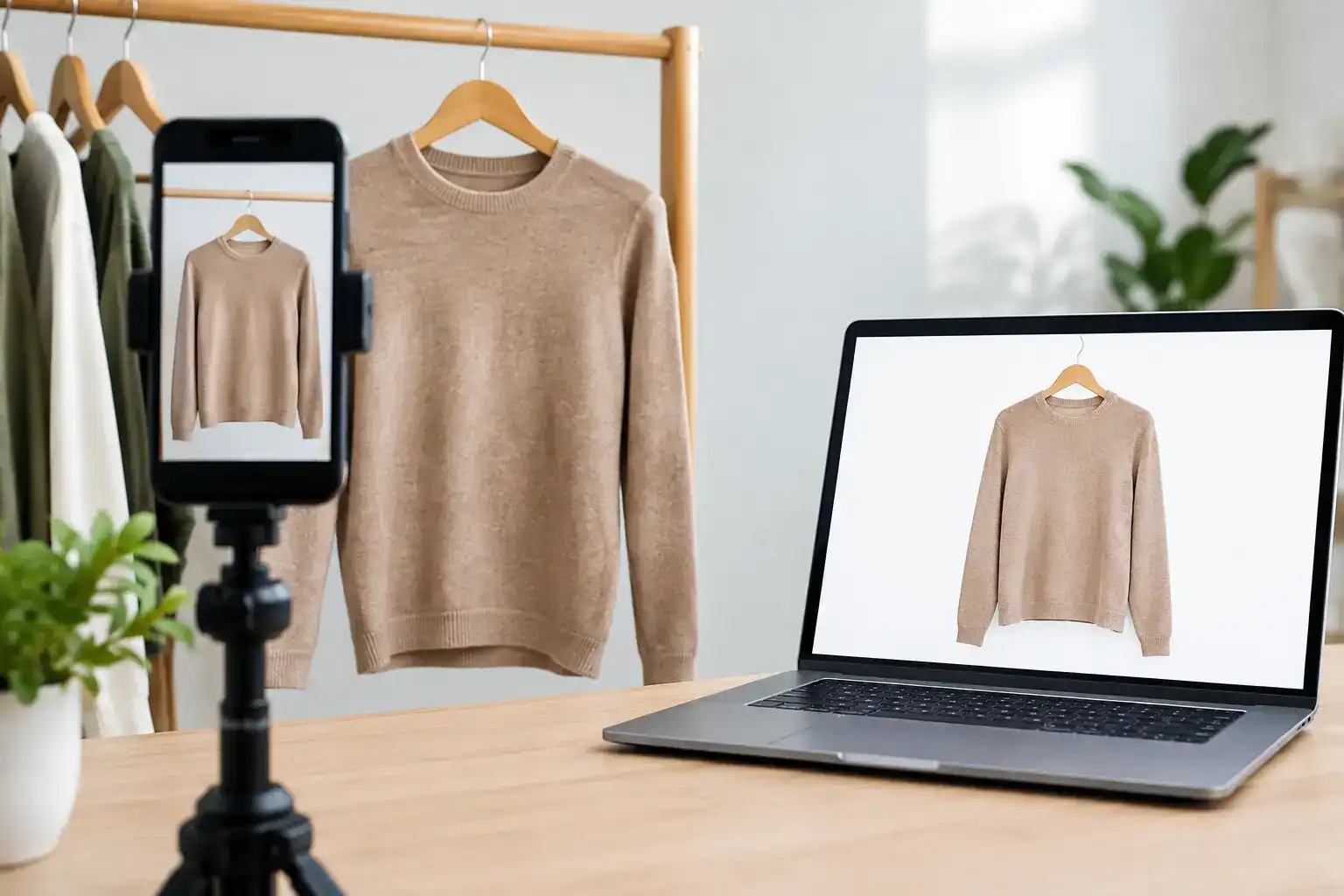
A hanger photo is the cheapest product photo a clothing seller can take. A phone and a plain wall are enough, nobody has to dress a mannequin, and most AI fashion tools now accept one as the input, Snaproom's included.
What the tool pages skip is that a hanger photo is a flawed record of the garment. Gravity pulls a knit longer than it wears and the hanger tips push bumps into the shoulders. The hook also hides the inside of the neck. A generator treats your upload as the product truth, so those flaws can carry into every image made from it. This guide covers what a hanger shot gets right, what it gets wrong, what each AI output has to invent, and how to shoot one that converts cleanly.
Yes, you can convert a hanger photo online into ghost mannequin, on-model and studio images, and a sharp phone photo is enough. The source sets the quality ceiling. Steam the garment, use a hanger that matches its shoulders, shoot straight on in even light, and add a back photo whenever the back differs. Then check every output for the hanger artifacts that survive conversion, which are shoulder bumps, extra length from stretch and a neckline that collapsed around the hook. Those decide whether the image matches what arrives in the box.
Shot front-on, a hanger photo is a good record of the things a shopper checks after delivery. Color, print placement, logo position, button and zipper count, pocket shape, ribbing and hem finish are all visible and close to undistorted, because the garment hangs flat to the lens. That is more than a bundled or half-folded phone photo gives you, and it is the information a generator is best at keeping.
Color is the part worth protecting most. In a 2023 Coresight Research survey of US apparel brands and retailers, sponsored by the sizing vendor 3DLOOK, size and fit was the most cited return reason at 53% of respondents and color came next at 16%. A hanger photo taken in neutral daylight pins down the shade before any backdrop, model skin tone or studio lighting is added around it.
A hanger holds a garment at two points and lets gravity do the rest. The photo looks fine. The problems show up once the garment is on a body.
On a retouched hanger shot these flaws are cosmetic. They matter once the photo becomes the reference for a ghost mannequin or a model image, because the generator usually cannot tell a hanger bump from a structured shoulder, or stretch from the real length. We'd treat any hanger flaw left in the upload as a likely flaw in the output.
Every conversion adds information that is not in the photo. What matters is how much it adds and whether a shopper would notice a wrong guess.
| Output | What it adds beyond the hanger photo | What to check first |
|---|---|---|
| Retouched hanger shot | A clean backdrop, even light and fewer wrinkles | Color still matches the garment |
| Ghost mannequin | Body volume, the inside back of the neck, and the back if you only upload the front | Neckline shape, shoulder line, inner label |
| On-model image | A body, a pose, the drape and where the hem and cuffs land | Length, sleeve length, print position when worn |
| Multi-angle views | Every side the source photo does not show | Back details, side seams, pocket layout |
| Short video | Movement and fabric behavior between frames | Fabric weight, details that drift between frames |
Our ghost mannequin tool needs a front view, recommends a back view and takes an optional interior shot that improves the neckline and collar. The interior shot is the one a hanger photo cannot give you, because the hook sits right where it would be. If the garment has a printed neck label, a contrast inner collar or a lined hood, shoot the inside separately with the garment laid open. The ghost mannequin photography guide covers the effect itself.
On-model output is where hanger stretch costs the most. If a knit hung a few centimeters longer than it wears, the model image can show it ending at the hip instead of the waist, and a shopper reads that as a fit claim. Size and fit is the leading return reason in the Coresight figures above. For virtual try-on and AI fashion model images, compare the hem and sleeve ends against the garment's flat measurements before publishing. Both generate from your photo on the brand side, which is a different technology from shopper-facing fitting widgets, as the virtual try-on explainer sets out.
Multi-angle views made from a single front photo guess at the back. If the back has a yoke, a print, a vent or a different pocket layout, upload a back photo or leave the generated back view out of the gallery.
The setup costs almost nothing. Most of the work is on the garment.
Smart retouch fixes wrinkles, lighting and backdrops on hanger shots in one pass, so a slightly rough phone photo is usable. It cannot put back a detail the photo never captured.
Some pieces hang badly enough that a flat lay or a dress form is the better source. Heavy knits and bias-cut or knit dresses stretch. Strapless and backless pieces have nothing to hang from, and heavily beaded garments pull out of shape under their own weight. Sheer fabrics let the wall show through, and sequins and satin pick up reflections from whatever is opposite them. For these we'd shoot flat or on a form and keep the hanger photo, if at all, as a color reference.
Reversible pieces, asymmetric cuts and anything with a back feature need at least two source photos however they are hung. The flat lay, ghost mannequin and on-model comparison covers which format each kind of garment needs on the final page.
Put the garment next to the screen when you review. Look at the shoulders for bumps the tool turned into structure, and check the hem and cuffs against your flat measurements. Then compare the neckline with the real one, and the color in daylight with the monitor's night mode off.
Where the image goes changes what you produce next. Main image rules for each marketplace live in our channel guides, starting with Amazon apparel image requirements, and the master set guide covers exporting one set to several channels. For how many images a page needs by garment type, see the nine essential images for clothing PDPs. If you sell into the EU, generated model images may also need a disclosure, which the EU AI Act post explains.
Yes. A sharp, evenly lit phone photo of the full garment against a plain wall is enough for ghost mannequin, on-model and retouched images. Focus, accurate color and a straight-on angle matter more than resolution. Turn the flash off and avoid the wide lens up close, which stretches the hem.
Not for ghost mannequin or on-model images, which replace the hanger as part of the conversion. Erasing it yourself in a basic editor usually leaves a gap at the neck that the tool then has to guess around. Upload the photo as shot and check the neckline in the output.
Knits stretch while they hang, so the source photo shows a longer, narrower garment than the one you ship, and the generator copies that length. Reshoot the knit flat or right after hanging it, and compare the hem position in the output with the garment's flat length before publishing.
Heavy knits, bias-cut and knit dresses, strapless or backless pieces, heavily beaded garments and sheer fabrics. Shoot these flat or on a dress form, and keep a hanger photo only as a color reference if it helps.
One front photo is the minimum. Add a back photo whenever the back differs from the front, and an inside-neck photo when the garment has a printed label, a contrast collar or a lining you want shown. Three photos cover nearly every garment.
Upload a hanger shot and get ghost mannequin, on-model and multi-angle images from the same photo.
Try SnaproomTurn one product image into a complete studio-grade AI model photo set.
Learn more →Place your garment on diverse AI models for realistic size and style representation.
Learn more →Generate front, back, side, and detail views from a single clothing image.
Learn more →